
CodingRouter Connect

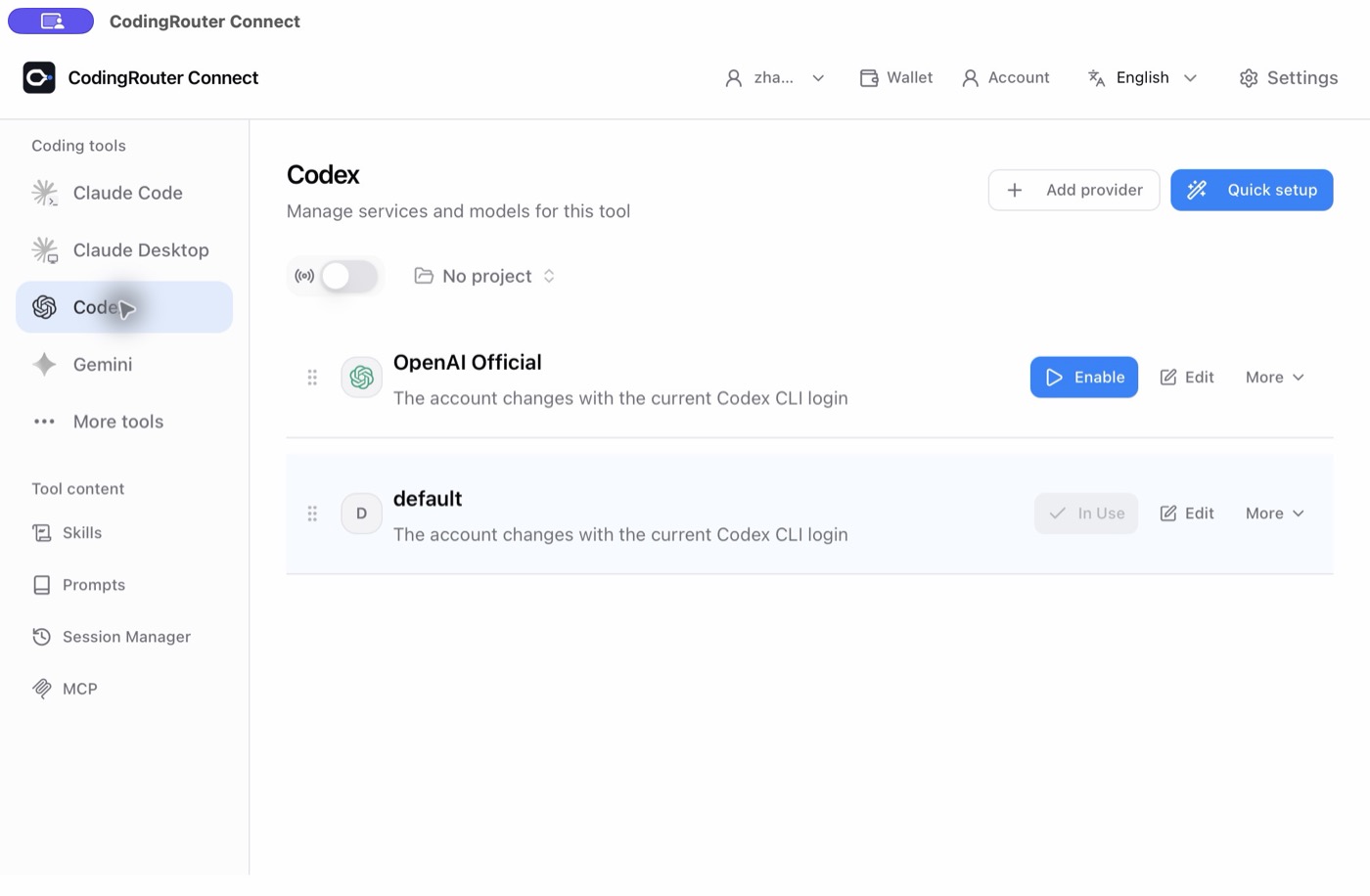
CodingRouter Connect is our desktop app for setting up Claude Code, Codex and Gemini CLI through a graphical interface, without editing config files by hand. Sign in to your CodingRouter account, pick a token and a model, confirm, and the tool is set up.
What it does
| Feature | Description |
|---|---|
| Manage tools in one place | Manage providers for Claude Code, Claude Desktop, Codex and Gemini |
| Quick setup | For Claude Code, Codex and Gemini, pick a token and an allowed model, preview, then confirm |
| Reversible changes | Before applying, it lists the configuration that will be replaced; you can restore from the saved backup later |
| Other providers | Other services can still be added through "Add provider" |
Connect manages connection settings only. It does not include Claude Code, Codex or the other tools themselves, so install the tools you need first.
Download
Get the latest version from the Connect download center, which also lists the SHA-256 of each package.
| System | Requirements | Packages |
|---|---|---|
| macOS | macOS 12 or later, Apple Silicon and Intel (Universal) | DMG (signed and notarized by Apple) |
| Windows | Windows 10 or later, x64 or ARM64 | MSI, or a portable ZIP |
| Linux | x64 or ARM64, glibc 2.35+, WebKitGTK 4.1 (for example Ubuntu 22.04+, Debian 12+) | AppImage, DEB, RPM |
Installing on Windows
The Windows packages are not code-signed yet, so Windows may show "Unknown publisher" or a SmartScreen warning. Only download from the download center above or GitHub Releases. To choose between x64 and ARM64, check the processor type under Settings → System → About.
Steps
- Install Connect: on macOS, open the DMG and drag the app to Applications; on Windows, run the MSI for your architecture or unzip the portable ZIP; on Linux, pick the matching DEB, RPM or AppImage (make the AppImage executable).
- Sign in: sign in to CodingRouter from the account entry in Connect and complete two-factor verification when asked. If you do not have an account yet, sign up at CodingRouter first.
- Choose the tool and model: in Claude Code, Codex or Gemini, open "Quick setup" and choose a token and an available model. Before creating a new token, check its group, quota and expiry; see Tokens and groups.
- Confirm and apply: check the tool, model, group and the configuration to be replaced, then apply.
- Restore if needed: use "Restore tool settings / View backups" to check a backup and restore the previous configuration.
Note
- "Configured" means the settings were saved, not that a request has been made. Send one real message in the tool afterwards to confirm it works.
- Backups may contain tokens. Keep them safe and do not share them.
Connect and manual setup
Connect writes each tool's own configuration, so the result is the same as setting it up by hand. If you prefer to manage the config files yourself, or work where there is no desktop (servers, CI), follow the manual guides:
Updates
Connect checks for a new version once after it starts, and you can check manually under About. When there is a new version, the download button opens its release page so you can pick the package; Connect does not install updates automatically.